Before you start Connecting a custom domain requires a paid Framer plan — Basic or above. On the free plan you can use a free Framer subdomain (yoursite.framer.website) but not your own domain.
If you're still on the free plan, see How Much Does Framer Cost? to decide which plan fits your needs.
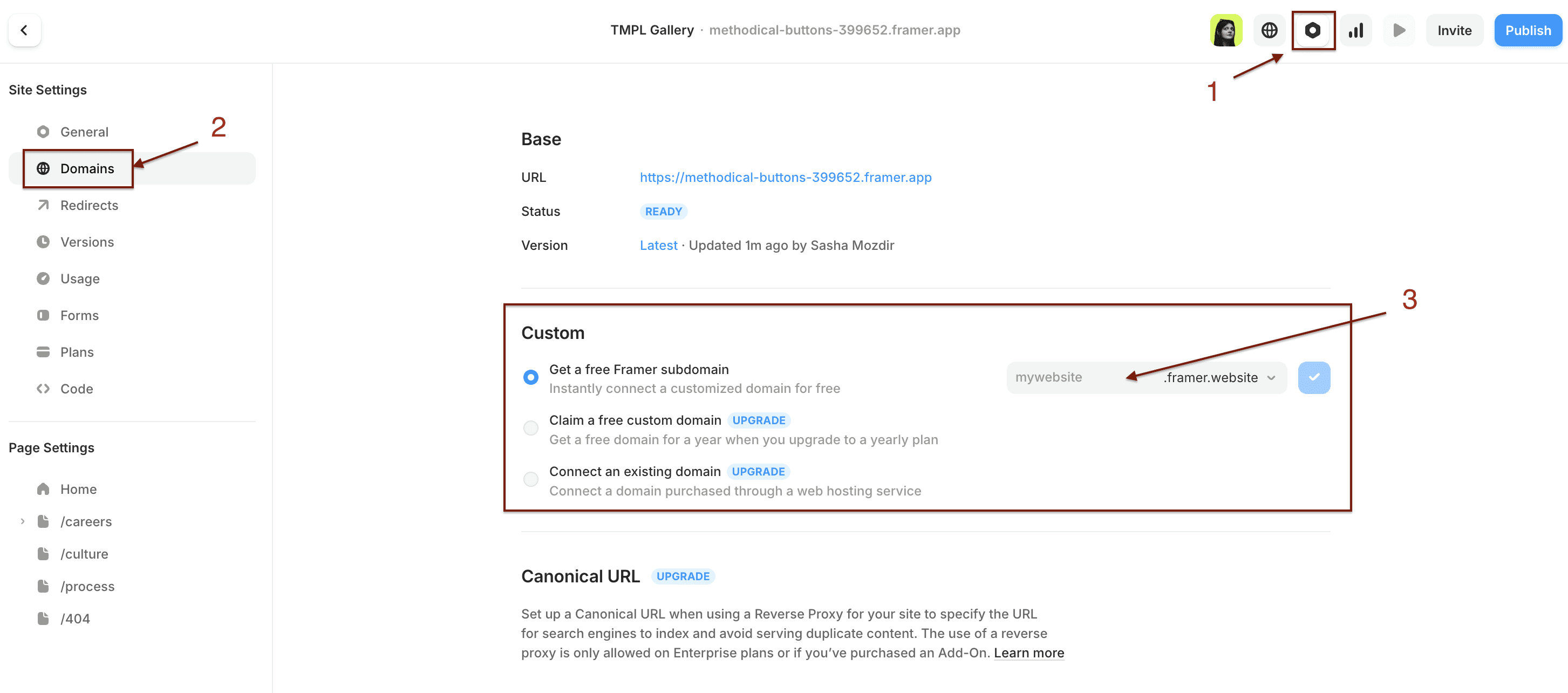
Option 1 — Get a free Framer subdomain If you don't have a domain yet and just want to go live quickly:
Go to Site Settings → Domains
Select "Get a free Framer subdomain"
Enter a name and choose from framer.website, framer.photos, framer.media, or framer.wiki
Submit — your site goes live within seconds
This is free and requires no DNS setup.
Option 2 — Claim a free .com domain If you upgrade to a yearly Framer plan, you can claim a free domain through Framer's partner Hover:
Upgrade your site to a yearly plan
Go to Site Settings → Domains
Select "Claim a free custom domain"
You'll be redirected to Hover to choose and claim your domain
The domain connects to your Framer site automatically
Note: the domain renews at standard rate after the first year, and redeeming this offer removes the option to request a refund on your plan.
Option 3 — Connect a domain you already own This is the most common scenario. You bought a domain from GoDaddy, Namecheap, Cloudflare, or another registrar — now you want to point it to Framer.
Step 1 — Remove any existing custom domain If your site already has a domain connected, go to Site Settings → Domains, click the three dots next to the current domain, and select Remove.
Step 2 — Connect your domain Go to Site Settings → Domains
Select "Connect an existing domain"
Enter your domain name
Framer will show you the DNS records you need to add
Step 3 — Update DNS records at your registrar Log into your domain registrar (GoDaddy, Namecheap, Cloudflare, etc.) and go to DNS settings. Add the following records:
For a root domain (example.com):
Name
Type
Value
@
A
31.43.160.6
@
A
31.43.161.6
www
CNAME
sites.framer.app
Make sure there are no other A or AAAA records for the same domain — they will interfere.
For a subdomain (blog.example.com):
Name
Type
Value
blog
CNAME
sites.framer.app
Step 4 — Wait for DNS to propagate DNS changes typically take a few minutes to a few hours. In rare cases up to 48 hours. Once done, your site will be live on the new domain.
Something not working? Check that you removed all existing A and AAAA records before adding Framer's. Conflicting records are the most common reason domains don't connect.
If it's been more than 48 hours and the domain still isn't connecting, contact Framer support at creators@framer.com.
Ready to launch? Once your domain is connected, your site is live. If you're still looking for a template to build on — browse TMPL Framer templates.