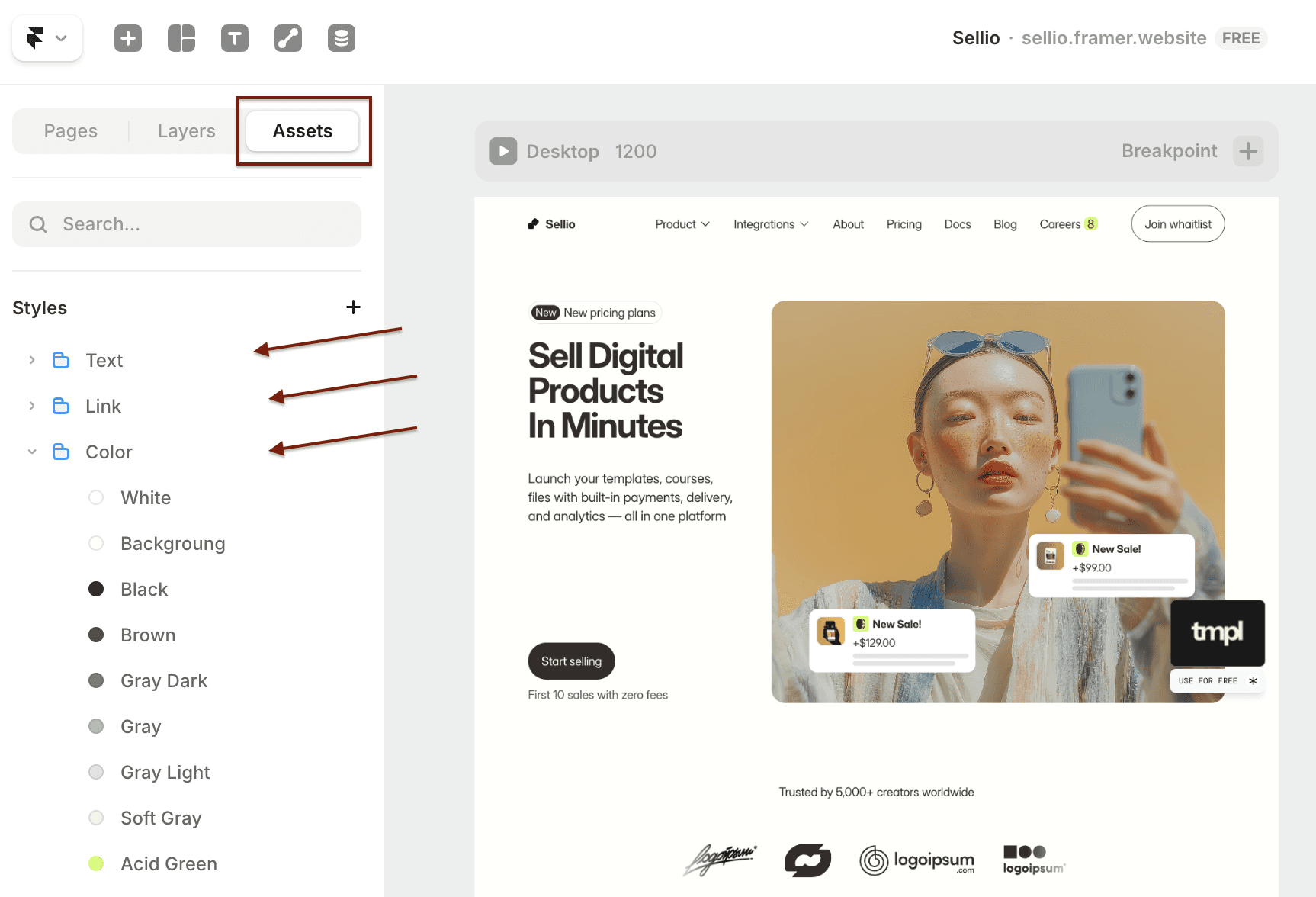
Step 1. Customize your brand styles first
Before touching any content, update the global styles. This instantly applies your fonts, colors, and link styles across the entire site — you won't have to update every element manually.
Open the Assets panel in the top left corner of the Framer editor
Scroll down to Styles → Text, Link, Color
Update:
Text — choose your font family and sizes
Link — set link color and hover style
Color — adjust brand colors (swap the accent color to yours)
Tip: always update the existing styles, don't create new ones. New styles won't be applied to existing elements automatically.
Step 2. Update the header
The header is a global component — changes apply across all pages automatically.
To edit it: click directly on the header on the canvas, or go to Assets → Templates → Template and double-click it.
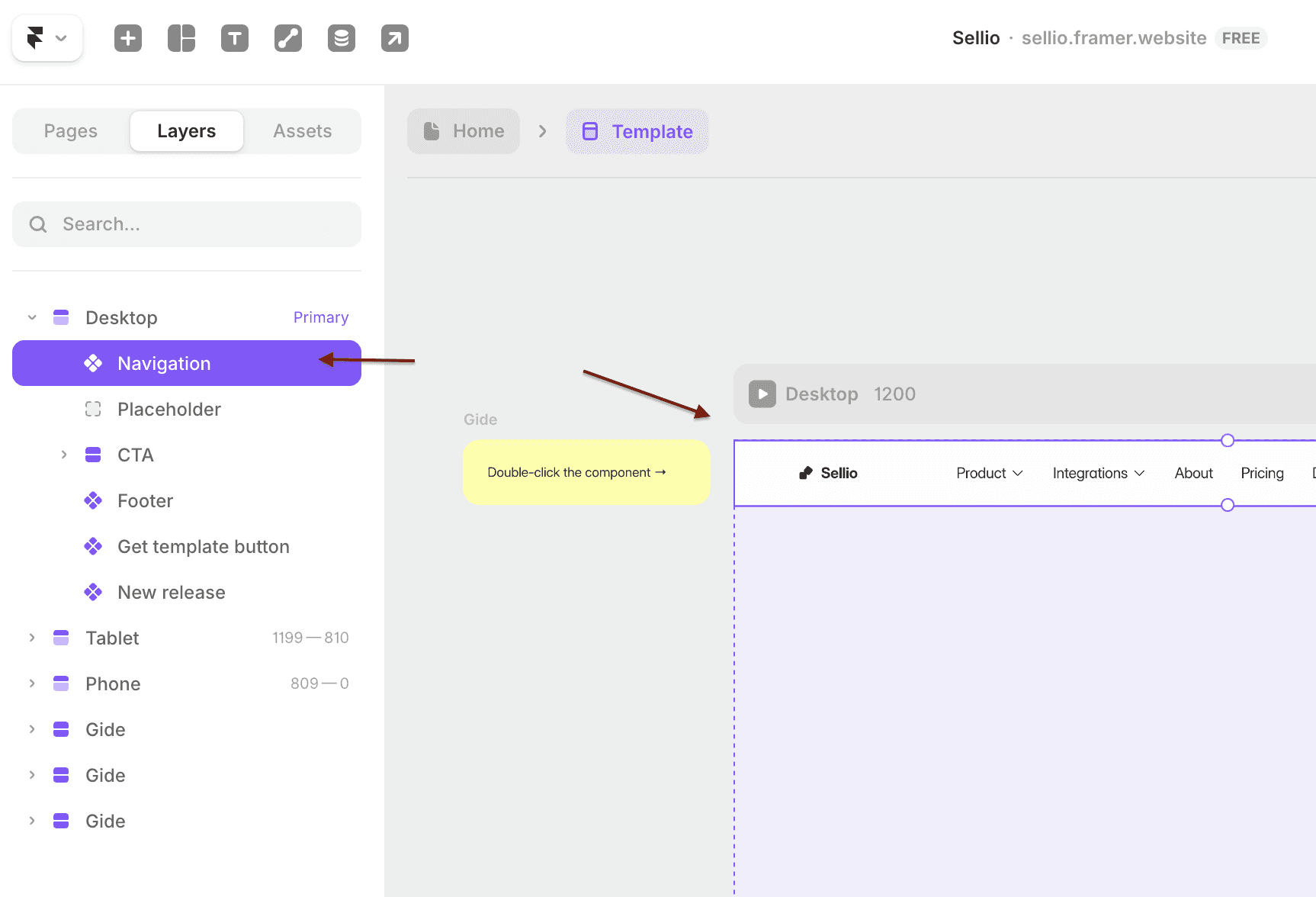
Inside the header you can update:
Logo — select the Logo block in the Layers panel, then replace the image or update the brand name text.
Menu links — select any Nav Item and set the Label, Link, and Variant (No Overlay for simple links, Overlay for dropdowns).
CTA button — update the Button Text, set the Link, and enable New Tab if needed.
Step 3. Update the footer
The footer is also a global component. Double-click it on the page, or go to Assets → Templates → Template.
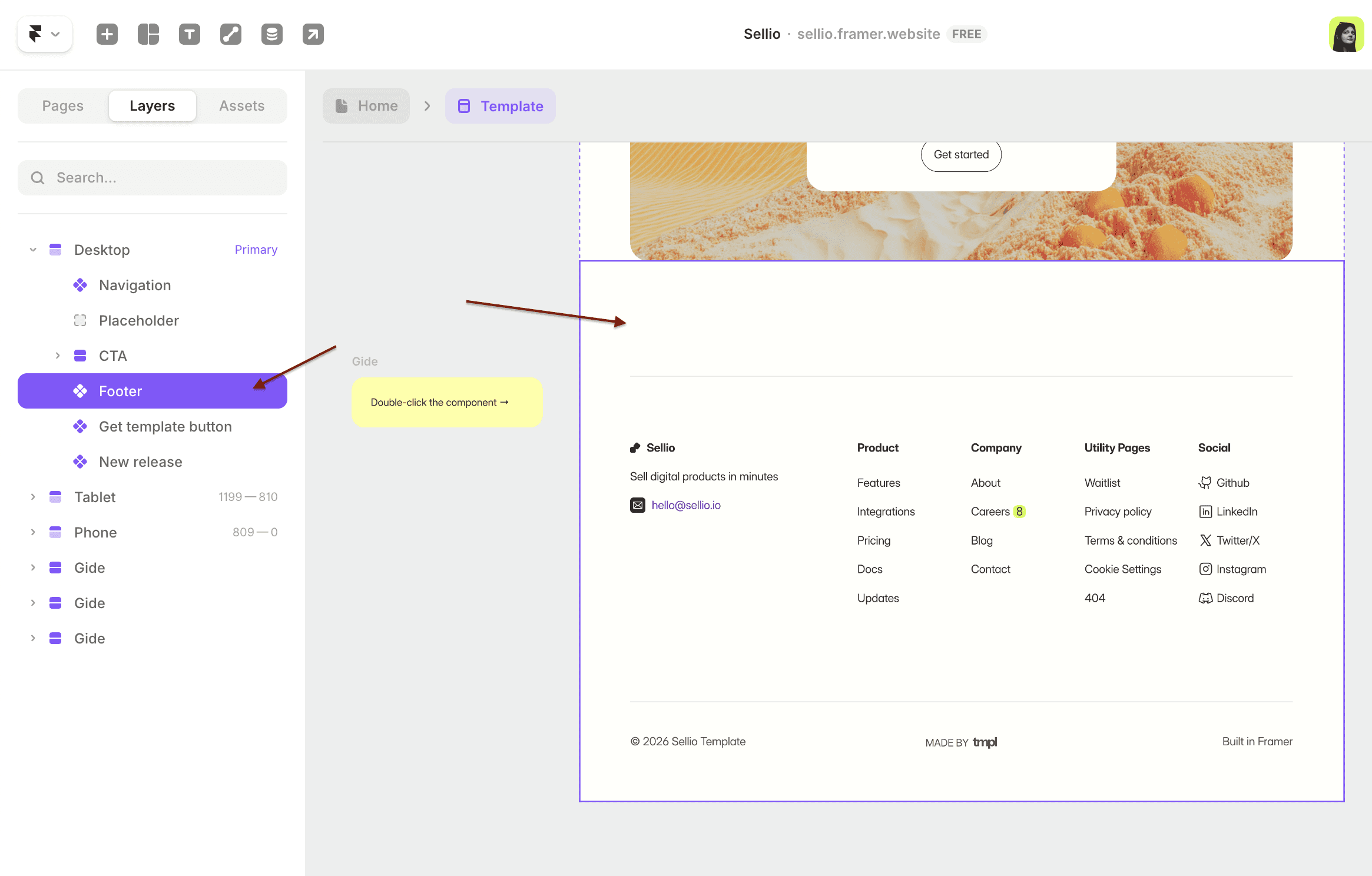
Inside you can update: logo and description, navigation links, social links, legal page links. All changes apply across the entire site.
Step 4. Update your page content
There are two types of content blocks in a Framer template:
Regular blocks — text, headings, paragraphs. Double-click directly on the text to edit, or use the right-hand panel.
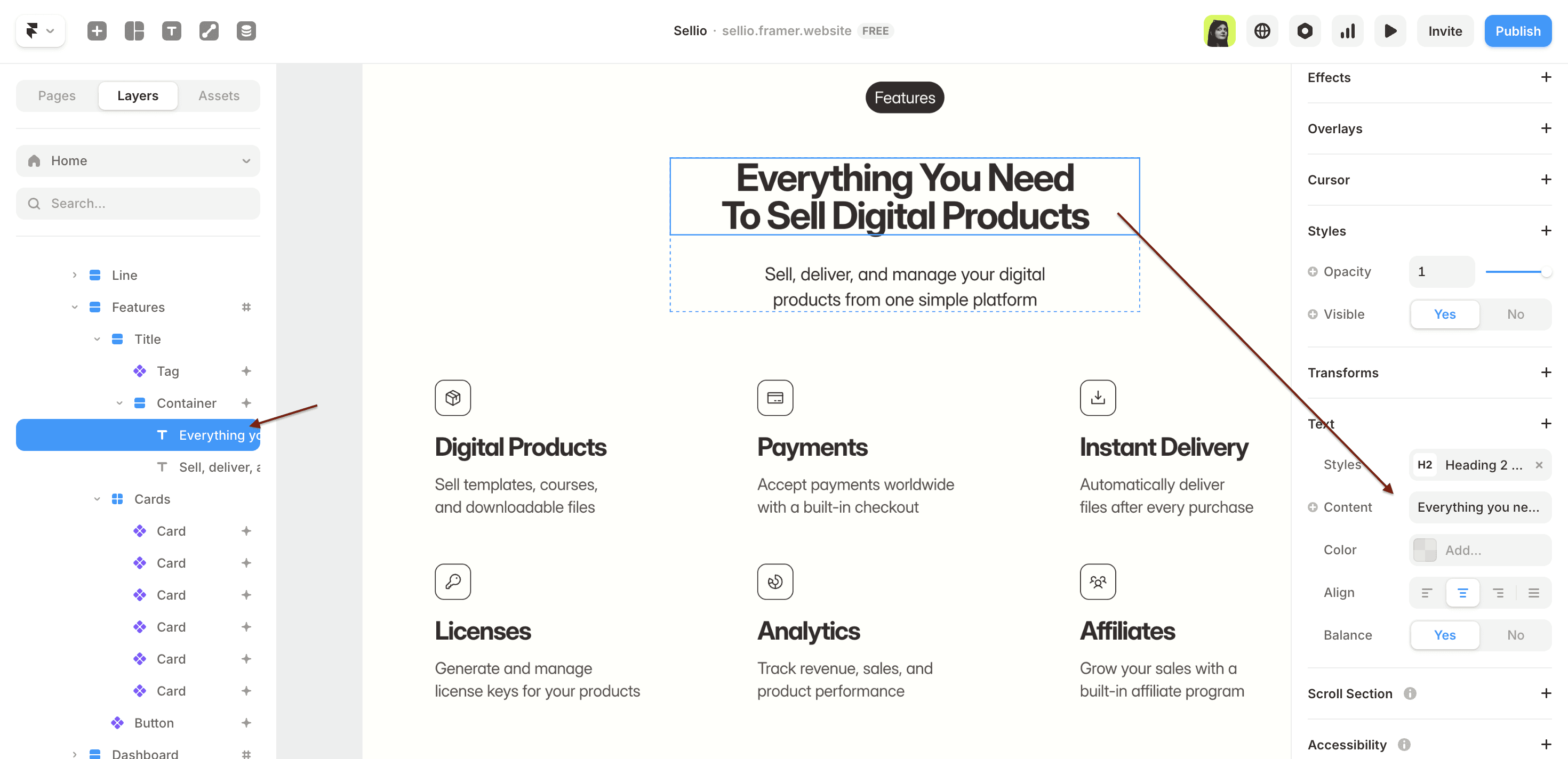
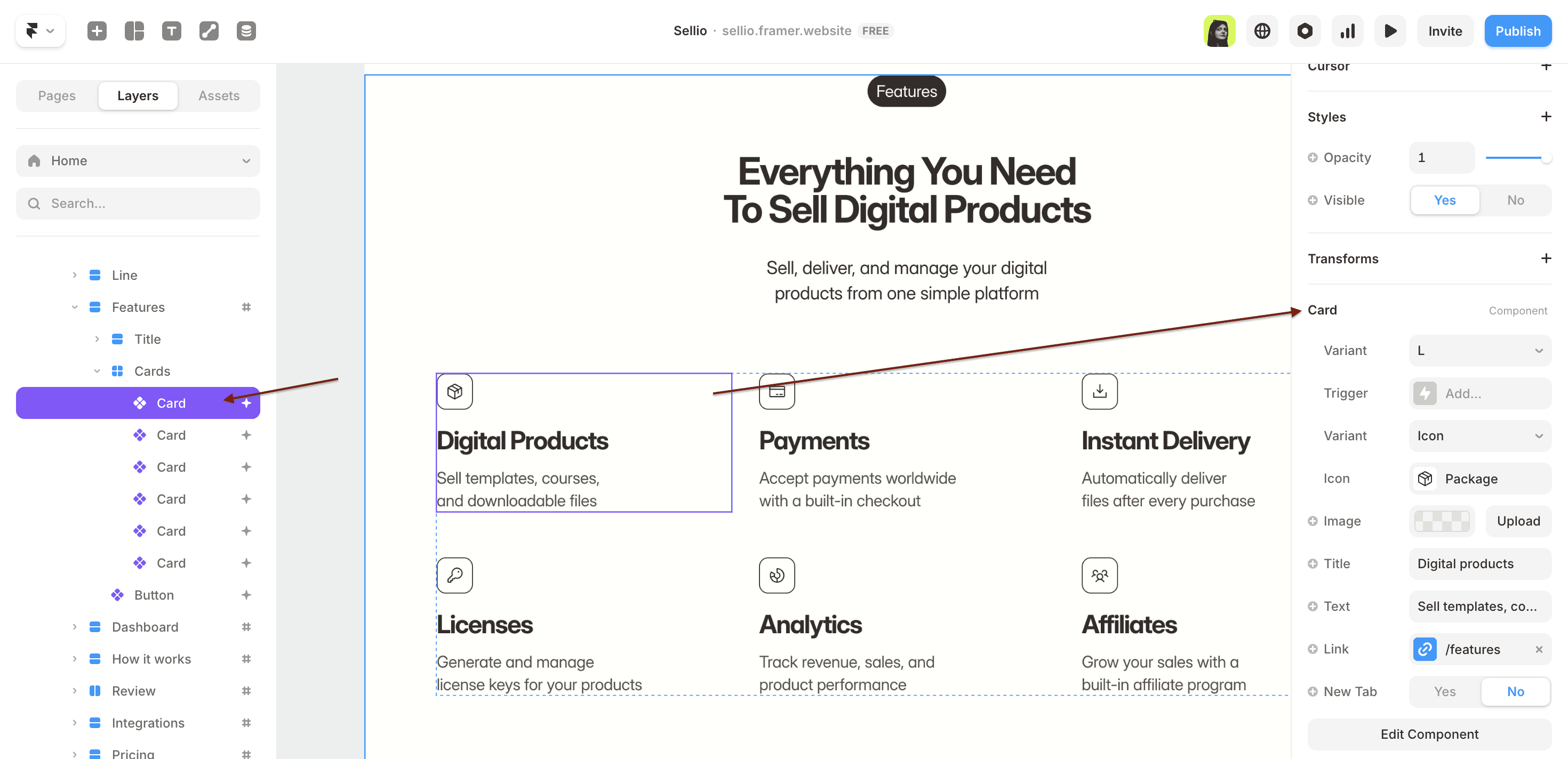
Components — reusable elements like buttons, cards, FAQ items. Edit them through the right panel — each field is listed there (title, text, icon, link, visibility).
Step 5. Update CMS content
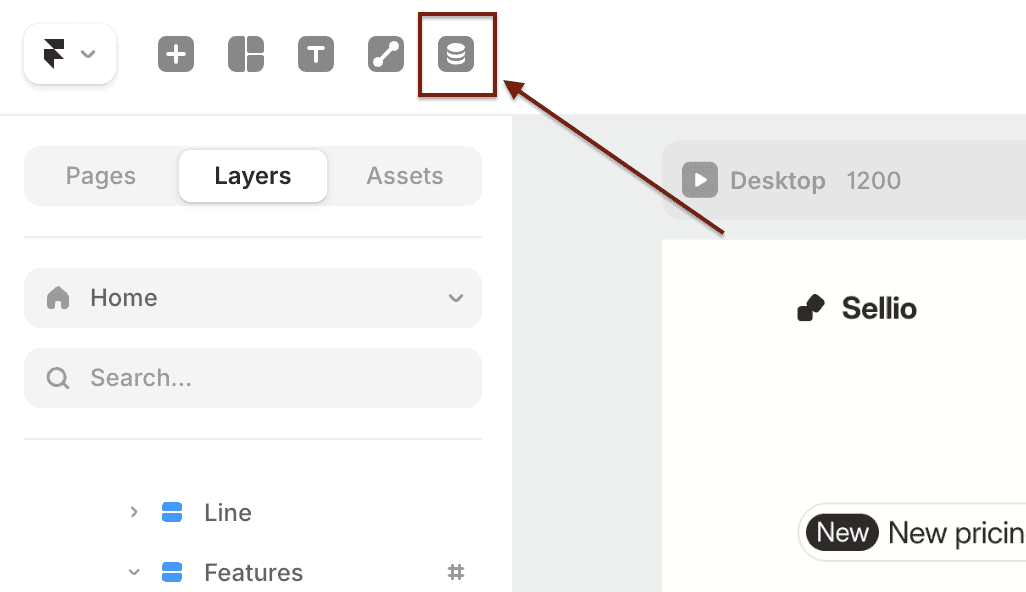
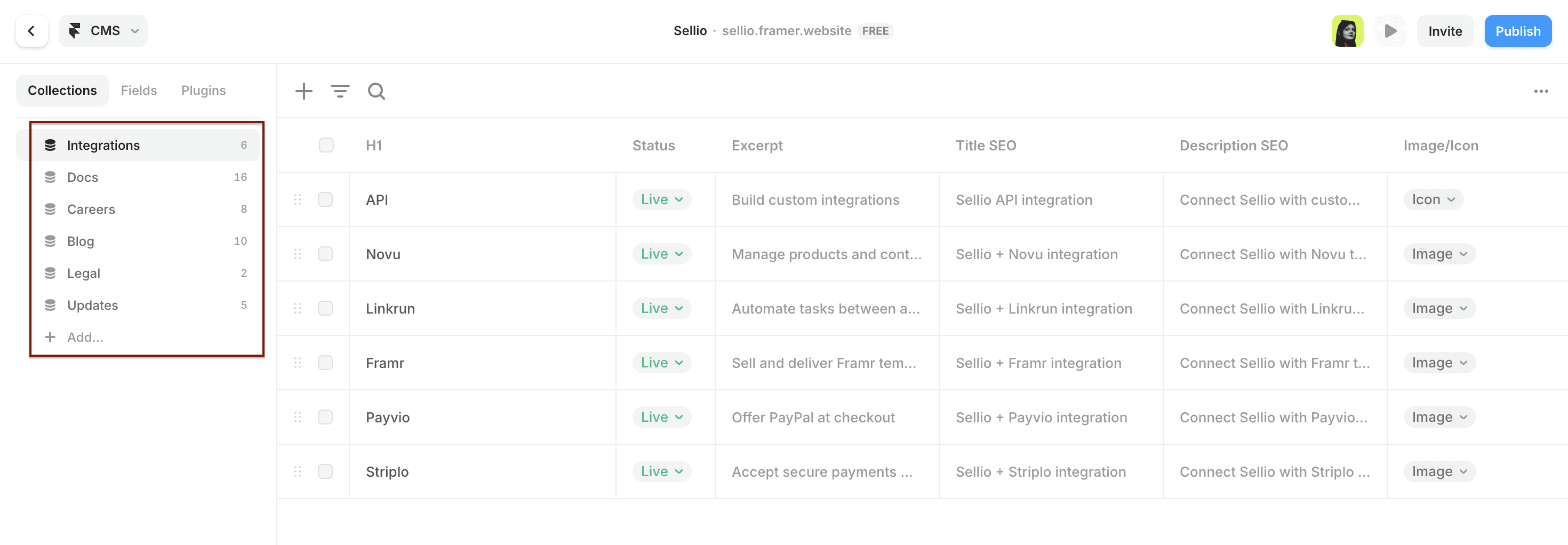
If your template uses CMS (blog posts, project pages, team members, integrations) — click the database icon in the top panel to open CMS collections.
Inside you can: add, edit, or delete items, change titles, descriptions, icons, and SEO fields. All connected sections on the site update automatically when CMS content changes.
Step 6. Set up before publishing
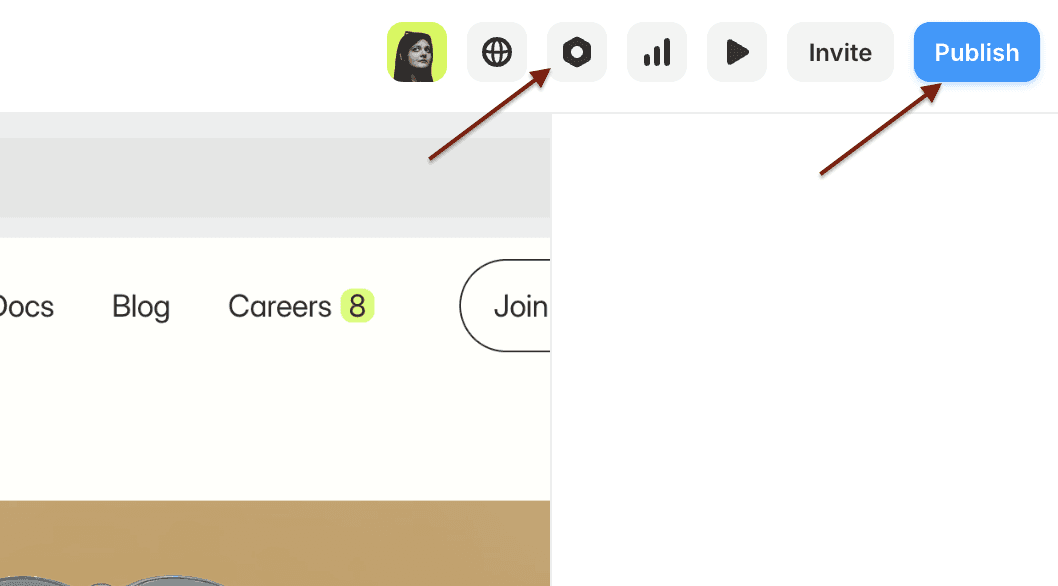
Before going live, fill in the key settings:
Click the settings icon (gear) in the top bar
Go to Site Settings and fill in:
Site title — shown in browser tabs and search results
Site description — a short summary for SEO
Language — make sure it matches your content
Connect your custom domain in the Domains tab (requires a paid plan)
Click Publish in the top right corner
Your site goes live instantly. To update after edits — click Publish again.
Looking for a Framer template to edit? TMPL templates come with a detailed setup guide included. Browse the collection.
Not sure which template to start with? I keep a few guides by use case: free portfolio templates, a resume and CV template, picks for coaches and wellness, jewelry and ecommerce, education and faculty, and a link in bio setup.
FAQ
Do I need to know how to code to edit a Framer template? No. Every step in this guide happens in Framer's visual editor: you click on text and type, swap images from the panel, and edit CMS entries like rows in a table. Code is optional and most template users never touch it.
How do I change the font in a Framer template? Open the Assets panel and edit the existing text styles. The change applies across the whole site at once. The mistake to avoid is creating new styles instead of updating the ones the template already uses, because new styles won't be connected to anything.
How long does it take to edit a template? An evening for a simple site if your text and images are ready. The content is usually the bottleneck, not the tool. CMS-heavy sites take longer because you're filling in entries, not because the editing is harder.
Can I edit a template on the free Framer plan? Yes. Editing is free, and you can publish on a framer.website subdomain without paying. A custom domain needs a paid plan, which starts at $10 a month on annual billing. I broke the plans down in How Much Does Framer Cost.
What if I break something? Undo works (Cmd+Z), and Framer keeps version history, so you can roll the whole project back. Worst case, you remix a fresh copy of the template and paste your content back in. Nothing you do in the editor is permanent until you hit Publish.